PERIMICE-513C
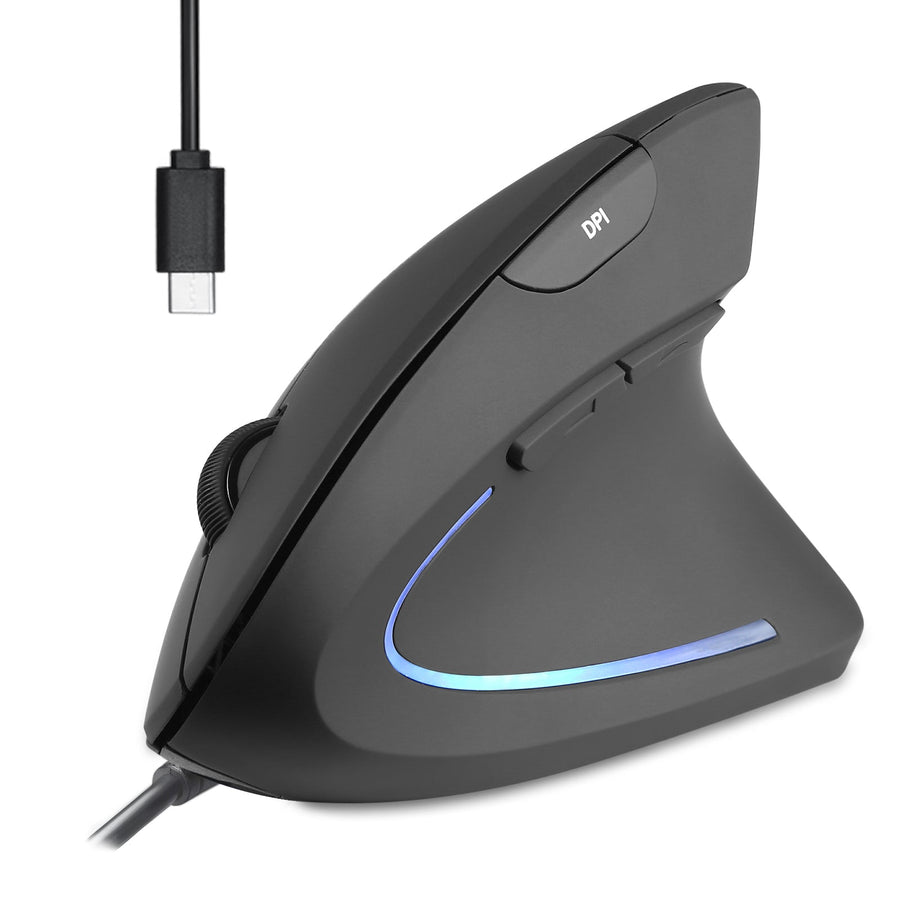
What are the differences between the standard PERIMICE-513 and the new Type-C version?
The PERIMICE-513 Type-C version is designed specifically for modern devices that use USB Type-C ports, eliminating the need for an adapter. The functionality and ergonomic vertical design remain the same, but the new version ensures better compatibility with newer laptops, tablets, and other Type-C devices.
How do I change the DPI settings on the PERIMICE-513 Type-C?
- Click the DPI button on the top of the mouse to cycle through the available DPI settings:
- 1000 DPI (Flashes once)
- 1600 DPI (Flashes twice – Default)
- 3200 DPI (Flashes three times)
- 6400 DPI (Flashes four times)
- A higher DPI setting allows for faster cursor movement, while a lower setting offers greater precision.
Can I turn off the LED lights on the PERIMICE-513 Type-C?
Yes, you can disable the decorative lights by pressing Middle Click + DPI Button at the same time.
Does the PERIMICE-513 Type-C require any additional drivers?
No, the PERIMICE-513 Type-C is a plug-and-play device, meaning it does not require additional drivers for standard functionality. However, you may need to adjust mouse settings through your operating system for an optimal experience.
The scroll wheel is too sensitive or not scrolling properly. How do I adjust it?
- Adjust scroll speed in Windows Settings:
- Go to Control Panel → Mouse Settings → Wheel
- Lower or increase the scroll speed as needed.
- If the issue persists, check for debris around the scroll wheel and clean it with compressed air.
- If scrolling is erratic, restart your computer and test on another device to see if the issue is with the mouse or the system.
How long is the cable on the PERIMICE-513 Type-C?
The PERIMICE-513 Type-C comes with a 1.8-meter (5.9 feet) cable, providing enough length for flexible positioning while keeping your workspace tidy.
The side buttons are not working on my Mac or Linux system. How can I fix this?
- On Mac, macOS does not support forward/backward buttons by default. You can use third-party software (like SteerMouse or BetterTouchTool) to assign functions to them.
- On Linux, ensure your system supports HID (Human Interface Device) drivers, as some distributions may require additional configuration.
The PERIMICE-513 Type-C is not recognized by my computer. What should I do?
- Try using a different USB-C port on your computer.
- Restart your computer and plug the mouse in again.
- Ensure the USB-C port is functional by testing another device.
- If using a USB-C hub, connect the mouse directly to the computer instead.
- If the issue persists, test the mouse on another computer to determine if it's a device issue.
The mouse clicks are not registering. How can I fix this?
- Check for any debris around the buttons and clean them if necessary.
- Try a different USB-C port on your computer.
- Open Device Manager (Windows) → Mice and other pointing devices → Uninstall the mouse driver, then restart your PC to allow it to reinstall automatically.
- If using on a Mac, test in another application as some macOS versions may have compatibility limitations with certain buttons.
What shall I do if the PERIMICE-513C Mouse is scrolling involuntarily?
1. Test on Another Computer: Start by connecting the mouse to a different computer. If the issue recurs, the mouse may be defective. In this case if you are an Amazon customer, please return the product to Amazon for a replacement or refund. If you bought the product from our official website, please contact our customer service: Link
2. Ensure a Direct Connection: Verify that the mouse is directly connected to one of the computer's USB ports rather than through an extension hub or dock. Using extension hubs can lead to connectivity issues which might cause erratic behavior such as involuntary scrolling.
3. Check and Update Drivers: Remove any previously installed mouse drivers, then restart your computer. This can resolve conflicts between the mouse software and your system. For this process, go to device manager and check the driver in Mice and other pointing device
- Select “Scan for hardware changes. This will allow your operating system to refresh the new hardware for plug and play.
- After refreshing the hardware list, please select “Update driver’ to check the any updates.
- Select the option “Search automatically for driver” check driver to update or reinstall for your operating system. After your operating system confirms to reinstall the driver, your mouse is confirmed that its driver is ready to operate.
4. Adjust Mouse Settings: Go into your computer's control panel or settings menu to adjust the mouse settings. Specifically, look for options to modify the scrolling speed and behavior. Reducing the scrolling speed or changing related settings may help mitigate the involuntary scrolling issue.
If the issue recurs, the mouse may be defective. In this case if you are an Amazon customer, please return the product to Amazon for a replacement or refund. If you bought the product from our official website, please contact our customer service: Link
Why is my mouse cursor behaving erratically, and how can I fix it?
1. Adjust Cursor Speed and Sensitivity: Access the mouse settings on your computer (usually found in the Control Panel on Windows or System Preferences on macOS) and adjust the cursor speed or sensitivity. Reducing these settings can often help manage erratic cursor movements.
2. Use an Optimal Surface: Optical and laser mice can behave unpredictably on reflective or transparent surfaces. Use the mouse on a mouse pad or a piece of non-reflective, colored paper. This provides a consistent surface for the optical sensor, enhancing its accuracy and preventing erratic behavior.
3. Check and Update Drivers: Remove any previously installed mouse drivers, then restart your computer. This can resolve conflicts between the mouse software and your system. For this process, go to device manager and check the driver in Mice and other pointing device
- Select “Scan for hardware changes. This will allow your operating system to refresh the new hardware for plug and play.
- After refreshing the hardware list, please select “Update driver’ to check the any updates.
- Select the option “Search automatically for driver” check driver to update or reinstall for your operating system. After your operating system confirms to reinstall the driver, your mouse is confirmed that its driver is ready to operate.
4. Restart and Reconnect: Sometimes, simply restarting your computer can resolve underlying issues causing erratic mouse behavior. After restarting, disconnect the mouse and then reconnect it. Try using a different USB port, especially if you're using a USB mouse, to rule out port-related issues.
5. Update or Reinstall Mouse Drivers: Outdated or corrupted mouse drivers can cause erratic cursor movements. Check the manufacturer's website for the latest driver software for your mouse and update accordingly. If issues persist, try uninstalling and then reinstalling the mouse drivers.
6. Inspect the Mouse for Physical Damage: Look for signs of wear or damage, such as a frayed cable, dirt or debris blocking the sensor, or damaged buttons. Cleaning the mouse, particularly around the sensor, using a soft, dry cloth can sometimes resolve issues.
7. Try Another Mouse: If possible, use a different mouse with your computer. If the problem persists with a new mouse, the issue might be with your computer. If the new mouse works fine, your original mouse may be defective.
If the issue recurs, the mouse may be defective. In this case if you are an Amazon customer, please return the product to Amazon for a replacement or refund. If you bought the product from our official website, please contact our customer service: Link
The mouse is too small or too large and causes hand discomfort. What should I do?
1. Consider Alternative Models: If your hand size is smaller than 7 inches, we recommend considering our smaller vertical mouse model, PERIMICE-519, which might be more suitable for you. If your hand size is bigger than 7 inches, we recommend considering our bigger vertical mouse model, PERIMICE-513, which might be more suitable for you.
2. Consult a Professional: If discomfort
persists despite using the correct mouse size, consulting with a healthcare provider
is advised to ensure ergonomic safety during use.
Is the mouse compatible with Mac, iMac, or Linux systems?
1. Windows Compatibility: The mouse is fully compatible with Windows 7, 8, 10, and 11.
2. Mac Usage:
Although the mouse can function on Mac systems with basic function, compatibility may differ across various OS X updates.
3. Linux and Other Systems: Compatibility requires that your system adheres to Human Interface Device (HID) standards. The mouse necessitates HID support to operate effectively across different operating systems.
How adjust of DPI of PERIMICE-513?
1. Click it once to switch DPI.
2. Faster cursor means 1600DPI, slower is 1000DPI.
3. Adjust cursor speed in Windows Settings if needed.