PERIDUO-512
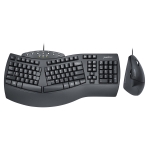
How can I address key function issues on PERIDUO-512, such as non-functional keys or keys not responding properly?
- To address key functions that are not working properly on your keyboard, follow these steps:
- Unplug the keyboard from your computer.
- Gently pry up the non-functional keys using your nail or a flat instrument, lifting them slightly on the edges.
- Use a cotton swab dipped in rubbing alcohol to clean off any sticky areas around the keys. Be careful not to use too much alcohol to avoid dripping.
- Check your keys to ensure they are no longer stuck and are functioning correctly.
This process should help resolve issues with keys that are not working as expected on your keyboard.
How can I troubleshoot a PERIDUO-512 that stopped working while typing, with character and number keys not responding, and random function keys activating during typing?
- To troubleshoot a keyboard with these issues, follow these steps:
- Connect the keyboard to another computer to check if the problem persists. This will help determine if the issue is with the keyboard or the computer.
- Ensure that the keyboard is connected properly to the computer. It is recommended to plug the keyboard directly into the computer's USB ports rather than using an external hub or adapter.
- Visit the Perixx website at https://eu.perixx.com/pages/download-driver to obtain the appropriate driver for your specific product. If you already have the driver installed, consider uninstalling and reinstalling the software, then restart your computer.
For more detailed instructions and information, you can refer to the product manual at this link: Product Manual.
How to add the language layout on my keyboard?
1. Open Settings: Click on the Start menu, then select the "Settings" gear icon.
Alternatively, you can press Win + I on your keyboard to open Settings directly.
Navigate to Time & Language: In the Settings menu, click on “Time & language.”
2. Select Language & region: On the sidebar, click on “Language & region.”
Here you'll see the languages currently installed.
3. Add a Language: If the language you would like to add is not already listed:
Click on “Add a language.”
4. Search for and select the language you want. then, click "Next" and then "Install"
to add the language pack.
5. Configure Keyboard Layout: Once the language is added, click on the three
dots (…) next to it under the “Preferred languages” section.
6. Select “Language options.” Then, Under “Keyboards,” click “Add a keyboard”
and select the keyboard layout you prefer.
7. Switch Between Keyboard Layouts: You can switch between keyboard layouts by
clicking on the language icon in the taskbar (near the clock) or by using the
shortcut Win + Space to cycle through the available keyboard layouts.
PERIDUO-512 won’t type after computer restart, what shall I do?
1. Test on Another Computer: To identify the problem, try connecting the PERIDUO-512 to another computer. This step is crucial as it helps isolate the issue. If the keyboard works fine on another system or computer, the problem might be with your original computer's hardware or software configurations. However, if it doesn't work on any computer, the keyboard itself might be faulty.
2. Direct Connection to Computer Ports: Often, issues with USB devices can stem from unstable connections, especially when using USB hubs or extension cables. Disconnect the PERIDUO-512 from any USB hubs or extension cables. Connect it directly to one of your computer's USB ports. Preferably, use a USB port on the back of a desktop computer, as these ports are directly connected to the motherboard and usually provide a more stable connection than front-side ports or ports on laptops.
3. Check and Update Drivers: Remove any previously installed keyboard drivers, then restart your computer. This can resolve conflicts between the keyboard software and your system. For this process, go to device manager and check the driver in Keyboards
- Select “Scan for hardware changes. This will allow your operating system to refresh the new hardware for plug and play.
- After refreshing the hardware list, please select “Update driver’ to check the any updates.
- Select the option “Search automatically for driver” check driver to update or reinstall for your operating system. After your operating system confirms to reinstall the driver, your mouse is confirmed that its driver is ready to operate.
4. Contact Customer Support: If, after following all the above steps, your PERIDUO-512 still doesn't work, it's time to seek further assistance. Reach out to customer support for personalized troubleshooting and potential repair or replacement options. Visit the official website and navigate to the support section to find contact information or a support request form. Provide a detailed description of the issue and the steps you've already taken to try to resolve it.
How can I address issues like double letters on PERIDUO-512 keyboard?
- To address issues like double letters on your keyboard, you can try the following steps:
- Open Settings: Click on the Start menu, then select the "Settings" gear icon. Alternatively, you can press Win + I on your keyboard to open Settings directly.
- Navigate to Ease of Access: In the Settings menu, click on “Ease of Access.”
- Scroll down the left side to find the "Keyboard" from "Interaction" section
in "Ease of Access."
- Please turn on "Ignore brief or repeated keystrokes and change keyboard repeat
rates" on "Use Filter Keys" section in Keyboard.
- Test the keyboard to see if the issue is resolved. If not, you can try cleaning the keys.
How to clean a Key on your keyboard?
- Unplug or turn off the keyboard.
- Identify the key causing the issue (e.g., the 'Y' key), then gently pry up the key using a small, flat instrument (flat-head screwdriver) or your nail. Insert the tool or your nail under the edge of the keycap and carefully lift it up. Be gentle to avoid damaging the keycap or the switch.
- Use the swab to clean any sticky areas on and around the key switch. Make sure to clean the underside of the keycap as well. If there is visible debris, use a dry cotton swab or compressed air to remove it before using the alcohol.
- Reinsert the key back into its original place by gently pressing it down until it snaps back into place.
- Check the keys to see if the issue is resolved.
What shall I do if the PERIDUO-512 Mouse is scrolling involuntarily?
1. Test on Another Computer: Start by connecting the mouse to a different computer. If the issue recurs, the mouse may be defective. In this case if you are an Amazon customer, please return the product to Amazon for a replacement or refund. If you bought the product from our official website, please contact our customer service: Link
2. Ensure a Direct Connection: Verify that the mouse is directly connected to one of the computer's USB ports rather than through an extension hub or dock. Using extension hubs can lead to connectivity issues which might cause erratic behavior such as involuntary scrolling.
3. Check and Update Drivers: Remove any previously installed mouse drivers, then restart your computer. This can resolve conflicts between the mouse software and your system. For this process, go to device manager and check the driver in Mice and other pointing device
- Select “Scan for hardware changes. This will allow your operating system to refresh the new hardware for plug and play.
- After refreshing the hardware list, please select “Update driver’ to check the any updates.
- Select the option “Search automatically for driver” check driver to update or reinstall for your operating system. After your operating system confirms to reinstall the driver, your mouse is confirmed that its driver is ready to operate.
4. Adjust Mouse Settings: Go into your computer's control panel or settings menu to adjust the mouse settings. Specifically, look for options to modify the scrolling speed and behavior. Reducing the scrolling speed or changing related settings may help mitigate the involuntary scrolling issue.
If the issue recurs, the mouse may be defective. In this case if you are an Amazon customer, please return the product to Amazon for a replacement or refund. If you bought the product from our official website, please contact our customer service: Link
Why is my mouse cursor behaving erratically, and how can I fix it?
1. Adjust Cursor Speed and Sensitivity: Access the mouse settings on your computer (usually found in the Control Panel on Windows or System Preferences on macOS) and adjust the cursor speed or sensitivity. Reducing these settings can often help manage erratic cursor movements.
2. Use an Optimal Surface: Optical and laser mice can behave unpredictably on reflective or transparent surfaces. Use the mouse on a mouse pad or a piece of non-reflective, colored paper. This provides a consistent surface for the optical sensor, enhancing its accuracy and preventing erratic behavior.
3. Check and Update Drivers: Remove any previously installed mouse drivers, then restart your computer. This can resolve conflicts between the mouse software and your system. For this process, go to device manager and check the driver in Mice and other pointing device
- Select “Scan for hardware changes. This will allow your operating system to refresh the new hardware for plug and play.
- After refreshing the hardware list, please select “Update driver’ to check the any updates.
- Select the option “Search automatically for driver” check driver to update or reinstall for your operating system. After your operating system confirms to reinstall the driver, your mouse is confirmed that its driver is ready to operate.
4. Restart and Reconnect: Sometimes, simply restarting your computer can resolve underlying issues causing erratic mouse behavior. After restarting, disconnect the mouse and then reconnect it. Try using a different USB port, especially if you're using a USB mouse, to rule out port-related issues.
5. Update or Reinstall Mouse Drivers: Outdated or corrupted mouse drivers can cause erratic cursor movements. Check the manufacturer's website for the latest driver software for your mouse and update accordingly. If issues persist, try uninstalling and then reinstalling the mouse drivers.
6. Inspect the Mouse for Physical Damage: Look for signs of wear or damage, such as a frayed cable, dirt or debris blocking the sensor, or damaged buttons. Cleaning the mouse, particularly around the sensor, using a soft, dry cloth can sometimes resolve issues.
7. Try Another Mouse: If possible, use a different mouse with your computer. If the problem persists with a new mouse, the issue might be with your computer. If the new mouse works fine, your original mouse may be defective.
If the issue recurs, the mouse may be defective. In this case if you are an Amazon customer, please return the product to Amazon for a replacement or refund. If you bought the product from our official website, please contact our customer service: Link