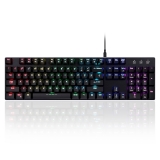
PERIBOARD-328
How to add the language layout on my keyboard?
1. Open Settings: Click on the Start menu, then select the "Settings" gear icon.
Alternatively, you can press Win + I on your keyboard to open Settings directly.
Navigate to Time & Language: In the Settings menu, click on “Time & language.”
2. Select Language & region: On the sidebar, click on “Language & region.”
Here you'll see the languages currently installed.
3. Add a Language: If the language you would like to add is not already listed:
Click on “Add a language.”
4. Search for and select the language you want. then, click "Next" and then "Install"
to add the language pack.
5. Configure Keyboard Layout: Once the language is added, click on the three
dots (…) next to it under the “Preferred languages” section.
6. Select “Language options.” Then, Under “Keyboards,” click “Add a keyboard”
and select the keyboard layout you prefer.
7. Switch Between Keyboard Layouts: You can switch between keyboard layouts by
clicking on the language icon in the taskbar (near the clock) or by using the
shortcut Win + Space to cycle through the available keyboard layouts.
Keyboard won’t type after computer restart, what shall I do?
1. Test on Another Computer: To identify the problem, try connecting the Keyboard to another computer. This step is crucial as it helps isolate the issue. If the keyboard works fine on another system or computer, the problem might be with your original computer's hardware or software configurations. However, if it doesn't work on any computer, the keyboard itself might be faulty.
2. Direct Connection to Computer Ports: Often, issues with USB devices can stem from unstable connections, especially when using USB hubs or extension cables. Disconnect the Keyboard from any USB hubs or extension cables. Connect it directly to one of your computer's USB ports. Preferably, use a USB port on the back of a desktop computer, as these ports are directly connected to the motherboard and usually provide a more stable connection than front-side ports or ports on laptops.
3. Check and Update Drivers: Remove any previously installed keyboard drivers, then restart your computer. This can resolve conflicts between the keyboard software and your system. For this process, go to device manager and check the driver in Keyboards
- Select “Scan for hardware changes. This will allow your operating system to refresh the new hardware for plug and play.
- After refreshing the hardware list, please select “Update driver’ to check the any updates.
- Select the option “Search automatically for driver” check driver to update or reinstall for your operating system. After your operating system confirms to reinstall the driver, your mouse is confirmed that its driver is ready to operate.
4. Contact Customer Support: If, after following all the above steps, The Keyboard still doesn't work, it's time to seek further assistance. Reach out to customer support for personalized troubleshooting and potential repair or replacement options. Visit the official website and navigate to the support section to find contact information or a support request form. Provide a detailed description of the issue and the steps you've already taken to try to resolve it.
How can I address issues like double letters on the keyboard?
- To address issues like double letters on your keyboard, you can try the following steps:
- Open Settings: Click on the Start menu, then select the "Settings" gear icon. Alternatively, you can press Win + I on your keyboard to open Settings directly.
- Navigate to Ease of Access: In the Settings menu, click on “Ease of Access.”
- Scroll down the left side to find the "Keyboard" from "Interaction" section
in "Ease of Access."
- Please turn on "Ignore brief or repeated keystrokes and change keyboard repeat
rates" on "Use Filter Keys" section in Keyboard.
- Test the keyboard to see if the issue is resolved. If not, you can try cleaning the keys.
How to clean a Key on your keyboard?
- Unplug or turn off the keyboard.
- Identify the key causing the issue (e.g., the 'Y' key), then gently pry up the key using a small, flat instrument (flat-head screwdriver) or your nail. Insert the tool or your nail under the edge of the keycap and carefully lift it up. Be gentle to avoid damaging the keycap or the switch.
- Use the swab to clean any sticky areas on and around the key switch. Make sure to clean the underside of the keycap as well. If there is visible debris, use a dry cotton swab or compressed air to remove it before using the alcohol.
- Reinsert the key back into its original place by gently pressing it down until it snaps back into place.
- Check the keys to see if the issue is resolved.
How to adjust Backlighting mode in PERIBOARD-328
- Six backlighting presets by pressing Fn + (F6-F11).
Does PERIBOARD-328 support the sleep timer function?
- PERIBOARD-328 does not support sleep mode.
Is it possible to program key values of PERIBOARD-328, such as changing Caps Lock to Escape and Escape to tilde?
- Yes, it is possible to remap the keys to change the Caps Lock function to Escape and Escape to Tilde. Please note that this can be achieved using the key combination FN+Shift+Esc, which will produce the tilde (~) character.
How can I set the keys of PERIBOARD-328 to a solid color without using any effects or software?
- Utilize the Fn+y keys to switch to solid mode.
- Subsequently, use Fn+backspace to change the color.
Is the “Alt Gr” key in PERIBOARD-328 also used as the context menu key?
- No, the Alt Gr key is used as an alternative Alt key or as the access key to the bottom-right symbols, such as the Euro symbol, with the US International Layout.
How to Use the Fn-Key of PERIBOARD-328?
The Fn-key of PERIBOARD-328 toggles between multimedia functions and standard function key (F1-F12) functions on your keyboard. When activated, it enables multimedia actions like adjusting volume or brightness. When deactivated, it restores the traditional F1 to F12 functions.
"Fn" + "F1" : 1st LED setting
"Fn" + "F2" : 2nd LED setting
"Fn" + "F3" : 3th LED setting
"Fn" + "F4" : 4th LED setting
"Fn" + "F5" : 5th LED setting
First press "Fn" + "F6" : LED Wave Mode 1
Second press "Fn" + "F6" : LED Wave Mode 2
Third press "Fn" + "F6" : LED Wave Mode 3
"Fn" + ↑ : LED from bottom to up
"Fn" + ↓ : LED from up to bottom
"Fn" + → : LED from left to right
"Fn" + ← : LED from right to left
"Fn" + → : LED clockwise
"Fn" + ← : LED counterclockwise
"Fn" + "F7" : LED Ripples Mode
Continuous press will change the color: (Mix>Red>Green>Yellow>Blue>Cyan>Purple>White>Mix)
First press "Fn" + "F8" : LED Scrolling Mode 1
Second press "Fn" + "F8" : LED Scrolling Mode 2
"Fn" + "F9" : LED Raindrop Mode. (Mix)
Continuous press will change the color: (Red>Green>Yellow>Blue>Cyan>Purple>White>Red)
"Fn" + "F10" : LED Breath Mode
Continuous press will change the color: (Red>Green>Yellow>Blue>Cyan>Purple>White>Red)
First press "Fn" + "F11" : Normal LED mode (Auto Switch color)
Second press "Fn" + "F11" : Switch LED color (Auto Switch>Red>Green>Yellow>Blue>Cyan>Purple>White>Auto
Switch)
"Fn" + "F12" : Start customize LED mode
Choose "F1" ~ "F5" Set up the LED
Second press "Fn" + "F12" : Save the setting
"Fn" + Pause : Default Setup
"Fn" + Page Up : LED speed up
"Fn" + Page Down : LED slow down (10 level adjust)
"Fn" + Print Screen : Gaming mode On/Off In Gaming mode
"Fn" + Win = windows key lock
"Fn" + - : LED Brightness
"Fn" + = : LED darkness